Rocket.Chat
Rocket.Chat is an open-source, secure, fully customizable communications platform for organizations with high standards of data protection. It is a solution for team communications, enabling real-time conversations between colleagues, with other companies, and with your customers or citizens, regardless of how they connect with you. The Rocket.Chat add-on enables seamlessly integrations of WordPress forms with your chat platform to get your teams automatically notified of new submissions.
The add-on
The Rocket.Chat REST API enable developers to integrate, automate, and extend Rocket.Chat, allowing to manage workspaces, users, rooms, and applications, and to build seamless communication experiences. To talk with this API, the add-on works with an extension of the generic REST bridge class.
A Rocket.Chat bridge will notify your form submissions to channels and rooms, or as direct messages. The add-on comes with a suit of templates to set up different types of forms to be bridged to user support channels or new contacts feeds. In addition, the add-on has a special workflow job to summarize form submissions as markdown lists that allows you to crawl user responses as chat messages.
How to use
The first step to use the add-on is to activate it on the add-ons table on the general settings tab.
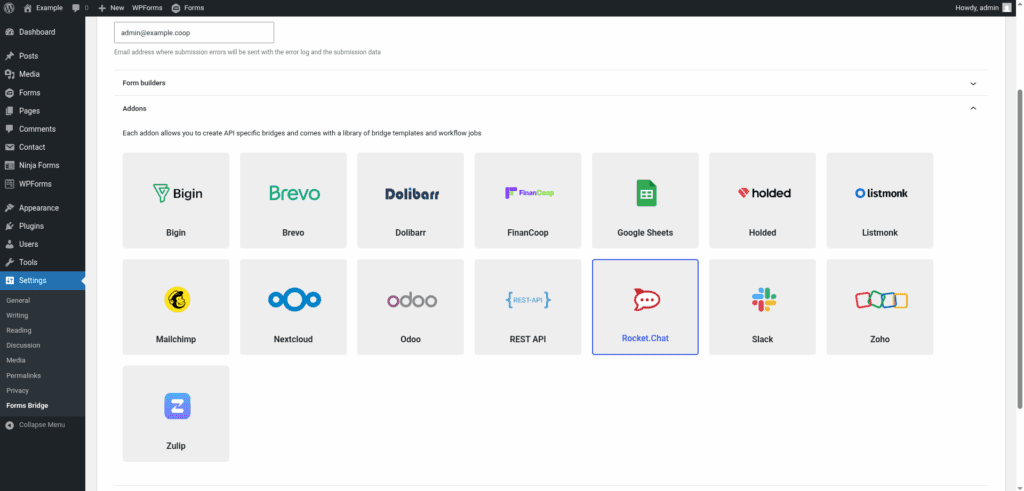
Once activated, a new tab will be visible on the settings page. If it’s your first time, it should looks like this:
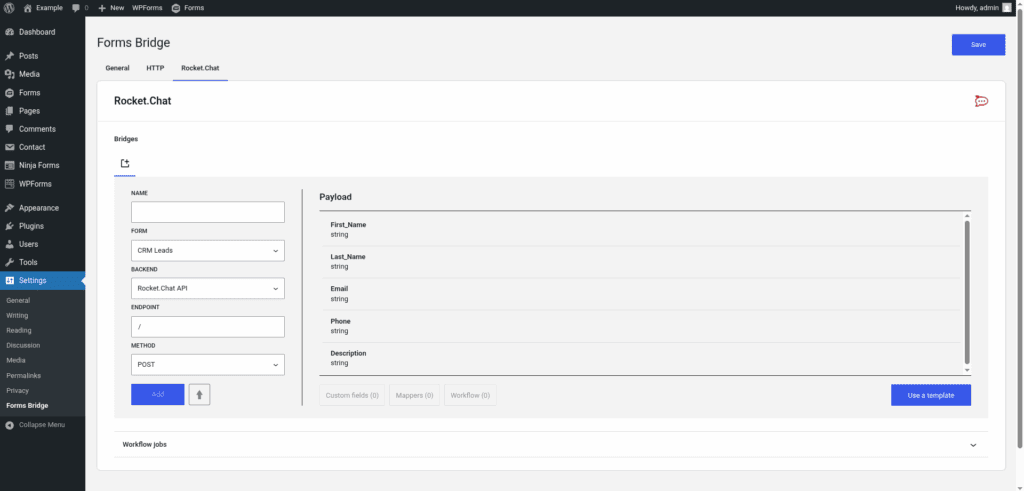
The template wizard
The recommended way to set up a new bridge is to use a template as a starter point. The add-on’s template wizard will set up a new backend connection, a basic HTTP credential and a form, all of them linked on a new bridge.
With this setup ready, you can edit the bridge’s form to fit your requirements or manually add new forms and bridge them with the backend you’ve configured on the previous step.
The template wizard will lead you through three steps:
1. Backend
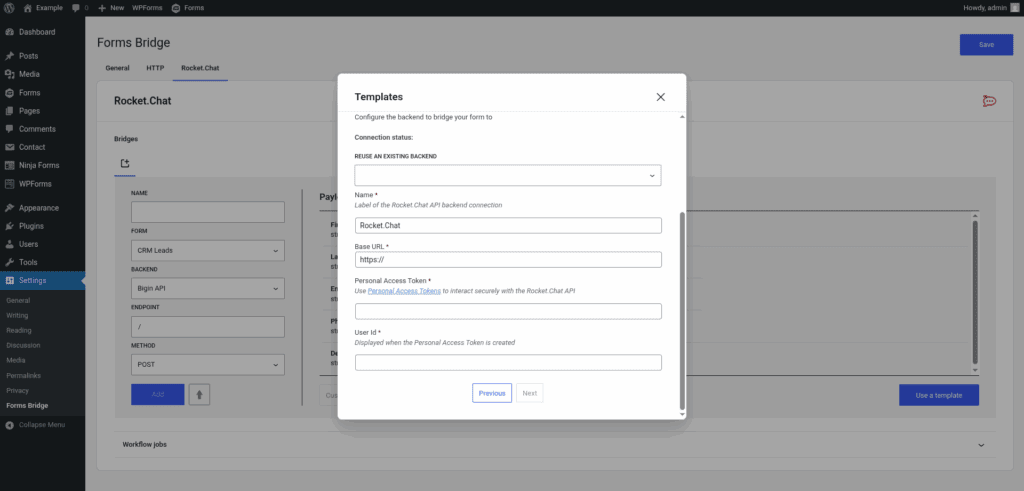
The backend step will require you to set a unique name to identify the new connection, the URL of your Rocket.Chat workspace, your User ID and your Personal Access Token.
To obtain the User ID and the Personal Access Token you have to go to the Personal Access Tokens of your account settings and create create a new token. The token should ignore two factor authentication to work properly with Forms Bridge. Once created, the token and the user ID will be shown in the screen.
You can use your own Rocket.Chat user to generate the Personal Access Token, or create a dedicated user for this purpose. If you opt for creating a dedicated user, you should assign the roles bot and admin to it.
Remember to join the channels you want to integrate with Forms Bridge with this user!
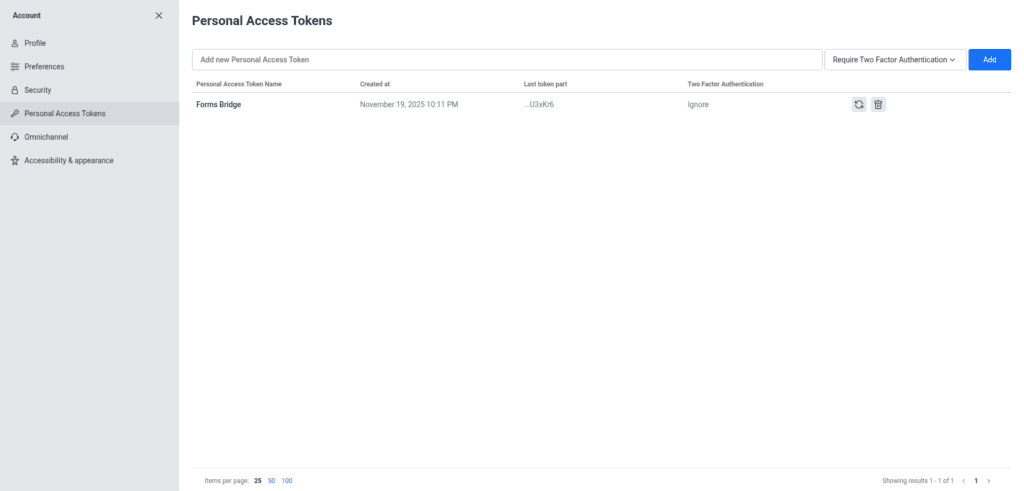
If you already have registered a Rocket.Chat workspace as a backend, the template wizard allows you to reuse it. If you want to get multiple bridges, the recommended way to proceed is to register the backend once and reuse it on your bridges.
2. Form
In this step you have to choose the title of the form the template are going to create. If there is a compatible form, the wizard allows you to reuse the existing form and skip the form creation.
3. Bridge
On the last step of the wizard, you have to set a unique name for the new bridge. In addition to the name, and depending on the template you are using, this step will require more or less fields to be informed. The required fields will be marked with a red asterisk
After that, click on submit and Forms Bridge will generate the credential, backend, form and bridge settings. It only remains to publish the new form on a public page and wait for a new form submission!
Manual set up
With templates, you can save a lot of time while configuring your bridges, but you can achieve the same result with a manual set up.
A Rocket.Chat bridge will require the following components:
1. Backend
To configure the Rocket.Chat REST API as a backend follow this steps:
- Add a new backend with a unique name (Rocket.Chat API, for example)
- Set the backend URL to your Rocket.Chat worskpace URL.
- Select
JSONas the Encoding Schema. - Add
Acceptas an HTTP header withapplication/jsonas value. - Add
X-User-Idas an HTTP header with your user ID as its value. - Add
X-Auth-Tokenas an HTTP header with your Personal Access Token as its value.
2. Form
Get your preferred form builder and create a new form. Once created, you can choose it as the target form to be bridged on the bridges panel of the add-on and use field mappers to make your form submissions conform with the messages endpoint interface.
3. Bridge
The add-on’s bridge is an extension of the generic REST bridge. Because of this they looks so similar. Like the REST bridge, the add-on’s bridge requires a unique name, a backend, a form, an endpoint and an HTTP method. In addition, we encourage you to use the summary workflow job of the add-on to get your form submission formatted as markdown text.
The bridge endpoint has to exists on the Rocket.Chat REST API. To get a comprehensive list of the available endpoints you can check the official documentation. For example, to get your subscription form bridged you have to set the bridge endpoint to /api/v1/chat.postMessage.
The bridge allows you to use 2 HTTP methods (GET, POST). In most cases you only want to use the POST method as it is the standard method send messages using the REST API.
Troubleshooting
To troubleshooting your bridges you can use the plugin’s debug console from the General Settings page. Enable the debug mode and submit a sample form response to see what’s going on under the hood. Take a look to our tutorial about how to use the debug console.
Common issues
- Authentication failures
- Check the user ID and access token of the backend credential.
- Missing data
- Verify that the endpoint exists with the official documentation.
- Validate field mappings using the bridge endpoint introspection.
- User responses should be passed formatted as a string value inside the
textfield of the payload.
Templates
The add-on comes packed with the following templates:
Contacts Channel 🔎
Contact form template. The resulting bridge will notify form submissions in a Slack channelDirect Messages 🔎
Contact form template. The resulting bridge will send form submissions as direct messages in Rocket.ChatSupport Channel 🔎
Support form template. The resulting bridge will notify form submissions in a Rocket.Chat channelWoo Orders 🔎
WooCommerce orders form template. The resulting bridge will notify new woocommerce customers to Rocket.Chat channels
Workflow jobs
The addon comes packed with the following workflow jobs:
Create DM 🔎
Creates a direct message session with a userFields summary 🔎
Format the payload fields field as a markdown listFormat date fields 🔎
Gets date, hour and minute fields and merge its values into a date with format Y-m-d H:M:SISO2 country code 🔎
Gets the ISO2 country code from country names and replace its valueISO3 country code 🔎
Gets the ISO3 country code from country names and replace its valueSkip submission 🔎
Skip submission if condition is not truthy
Supported form builders