SuiteCRM
SuiteCRM is a free, open-source CRM described as “Something that is close to Salesforce in power”. It covers the full customer lifecycle—leads, accounts, opportunities, cases, quotes—without locking anything behind a paid tier.
The SuiteCRM addon enables seamless integration of WordPress forms with SuiteCRM’s various modules, including leads, contacts, accounts and meetings.

The addon
SuiteCRM has the API v4 to allow third party code to access and edit SuiteCRM data and functionality. It’s a SOAP API with an implementation of a REST web service that works with JSON data. Despite it’s name, it isn’t a REST-like API and looks more like a SOAP API with JSON. To talk with this API, the add-on works with an custom implementation of the bridge class.
A SuiteCRM bridge will synchronize your form submissions with the database of your CRM. The add-on comes with a suite of templates and workflow jobs to bridge forms to the Accounts, Contacts, Leads and Meetings modules, but you’re not tied to this options: either via templates or via manual set up, you can configure your bridges to target any module and to fit your models custom fields.
How to use
The first step to use the add-on is to activate it on the add-ons table on the general settings tab.
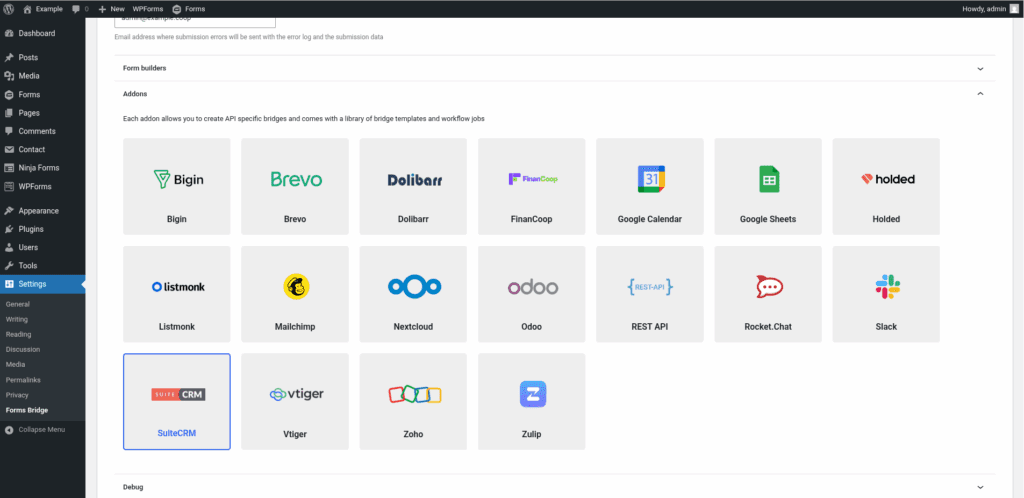
Once activated, a new tab will be visible on the settings page. If it’s your first time, it should looks like this:
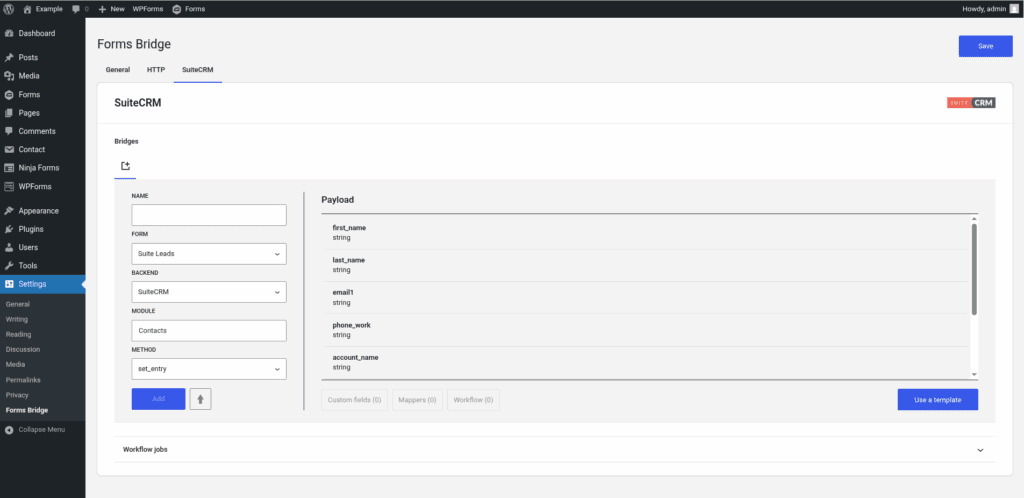
The template wizard
The recommended way to set up a new bridge is to use a template as a starter point. The add-on template wizard will set up a new credential, a backend connection and a form, all linked to a new bridge.
With this setup ready, you can edit the bridge’s form to fit your requirements or manually add new forms and bridge them with the backend you’ve configured on the previous step.
The template wizard will lead you through four steps:
1. Credential
On this step, Forms Bridge will register a new Basic credential. The SuiteCRM API uses a custom authentication schema based on SOAP sessions. In this case, the Basic credential only holds the username and password that the bridge will use to establish the authenticated session. The step form will require you to set three fields:
- Name: The credential name. A unique name that identifies the credential inside Forms Bridge.
- Username: The login username of the user you are going to use to authenticate against the API.
- Password: The user’s password.
To complete the wizard, the user must have access and list permissions for the Users module, in addition to the access and edit permissions for the target module of the bridge. You can create a dedicated user for this purpose and manage its permissions with a custom role.
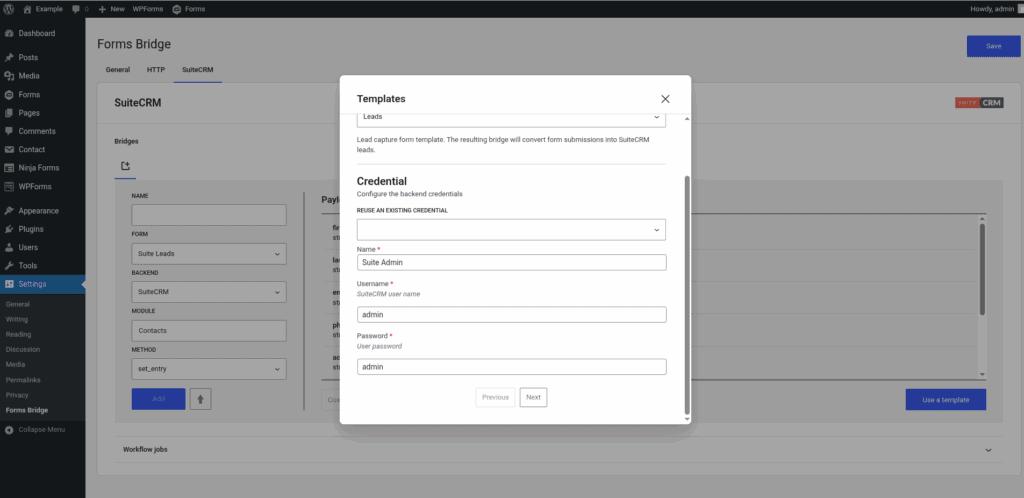
If you already have a Basic credential registered, the template wizard allows you to reuse it. If you want to get multiple bridges, the recommended way to proceed is to register a Bearer credential and reuse it on your bridges.
2. Backend
The backend step will require you to set a unique name to identify the new connection and the base URL of your SuiteCRM instance (e.g., https://crm.example.coop).
3. Form
In this step you have to choose the title of the form the template are going to create. If there is a compatible form, the wizard allows you to reuse the existing form and skip the form creation.
4. Bridge
On the last step of the wizard, you have to set a unique name for the new bridge. In addition to the name, and depending on the template you are using, this step will require more or less fields to be informed. The required fields will be marked with a red asterisk.
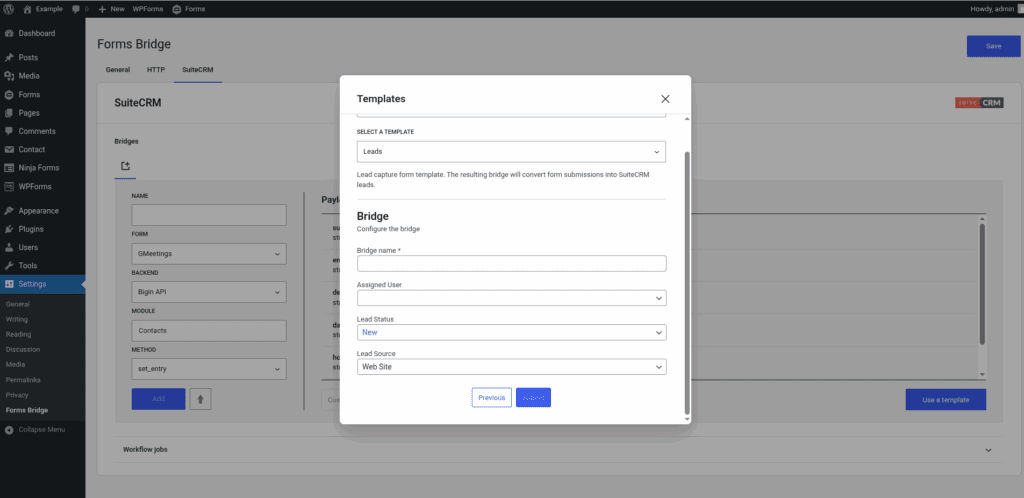
After that, click on submit and Forms Bridge will generate the credential, backend, form and bridge setting. It only remains to publish the new form on a public page and wait for a new form submission!
Manual set up
With templates, you can save a lot of time while configuring your bridges, but you can achieve the same result with a manual set up.
A SuiteCRM bridge will require the following components:
1. Credential
The SuiteCRM API uses a custom authentication schema based on SOAP sessions. To solve this authentication challenge, the add-on makes use of Basic HTTP credentials to hold the username and password that the bridge will use to establish the authenticated session.
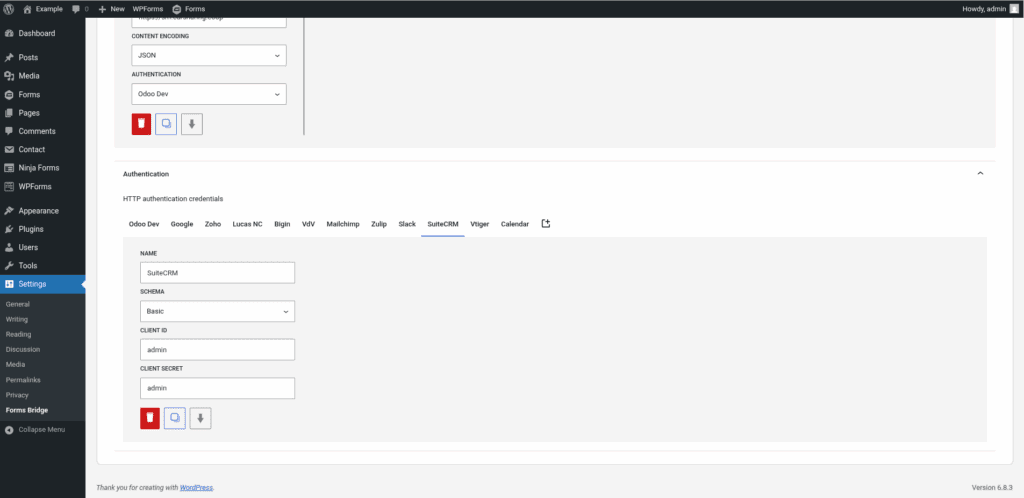
Go to Settings > Forms Bridge > HTTP > Authentication on your WordPress admin page and register a new authentication credential.
Select Basic as the authentication schema and set the username as the Client ID and password as the Client secret. In addition, you have to choose a unique name to identify this new credential.
2. Backend
To configure the SuiteCRM API as a backend follow this steps:
- Add a new backend with a unique name.
- Set the base URL of your CRM instance as the connection URL (e.g., https://crm.example.coop).
- Select
URL Encodingas the Encoding Schema. - Add
Acceptas an HTTP header withapplication/jsonas value. - Bind the credential you’ve configured in the previous step to the backend.
3. Form
Get your preferred form builder and create a new form. Once created, you can choose it as the target form to be bridged on the bridges panel of the add-on. If your form fields does not match the desired web service endpoint schema, you can use bridge’s field mappers to rename them.
4. Bridge
The add-on bridge is an extension of the generic REST bridge that implements calls. Like the REST bridge, the add-on bridge requires a unique name, a backend and a form, but instead of an endpoint and an HTTP method, the bridge requires a module name and a custom method.
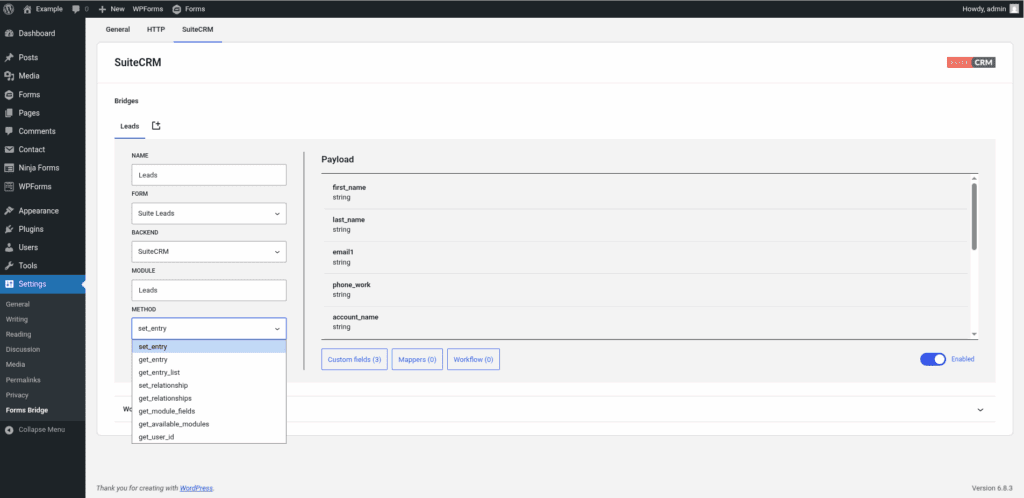
The bridge module has to match with one of the available modules in your CRM (Leads, Contacts, Accounts, etc.). For the method there is a list of available API call methods. Use set_entry as the default method as it is the way to write entries on the database.
Troubleshooting
To troubleshooting your bridges you can use the plugin’s debug console from the General Settings page. Enable the debug mode and submit a sample form response to see what’s going on under the hood. Take a look to our tutorial about how to use the debug console.
Common issues
- API connection failures
- Verify the username and password
- Verify the user permissions
- Ensure module availability
- Missing data
- Validate field mappings
- Verify module layouts
Templates
The addon comes packed with the following templates:
Accounts 🔎
Account form bridge template. The resulting bridge will convert form submissions into SuiteCRM accounts (companies/organizations).Contacts 🔎
Contact form bridge template. The resulting bridge will convert form submissions into SuiteCRM contacts.Leads 🔎
Lead capture form template. The resulting bridge will convert form submissions into SuiteCRM leads.Meetings 🔎
Meetings form bridge template. The resulting bridge will convert form submissions into SuiteCRM meetings.
Workflow jobs
The addon comes packed with the following workflow jobs:
Account 🔎
Creates an account in SuiteCRMContact 🔎
Creates a contact in SuiteCRMMeeting invitees 🔎
Adds invitees to a SuiteCRM meetingSkip contact 🔎
Searches for existing contacts by name and skip duplicationsFormat date fields 🔎
Gets date, hour and minute fields and merge its values into a date with format Y-m-d H:M:SISO2 country code 🔎
Gets the ISO2 country code from country names and replace its valueISO3 country code 🔎
Gets the ISO3 country code from country names and replace its valueSkip submission 🔎
Skip submission if condition is not truthy
Supported form builders